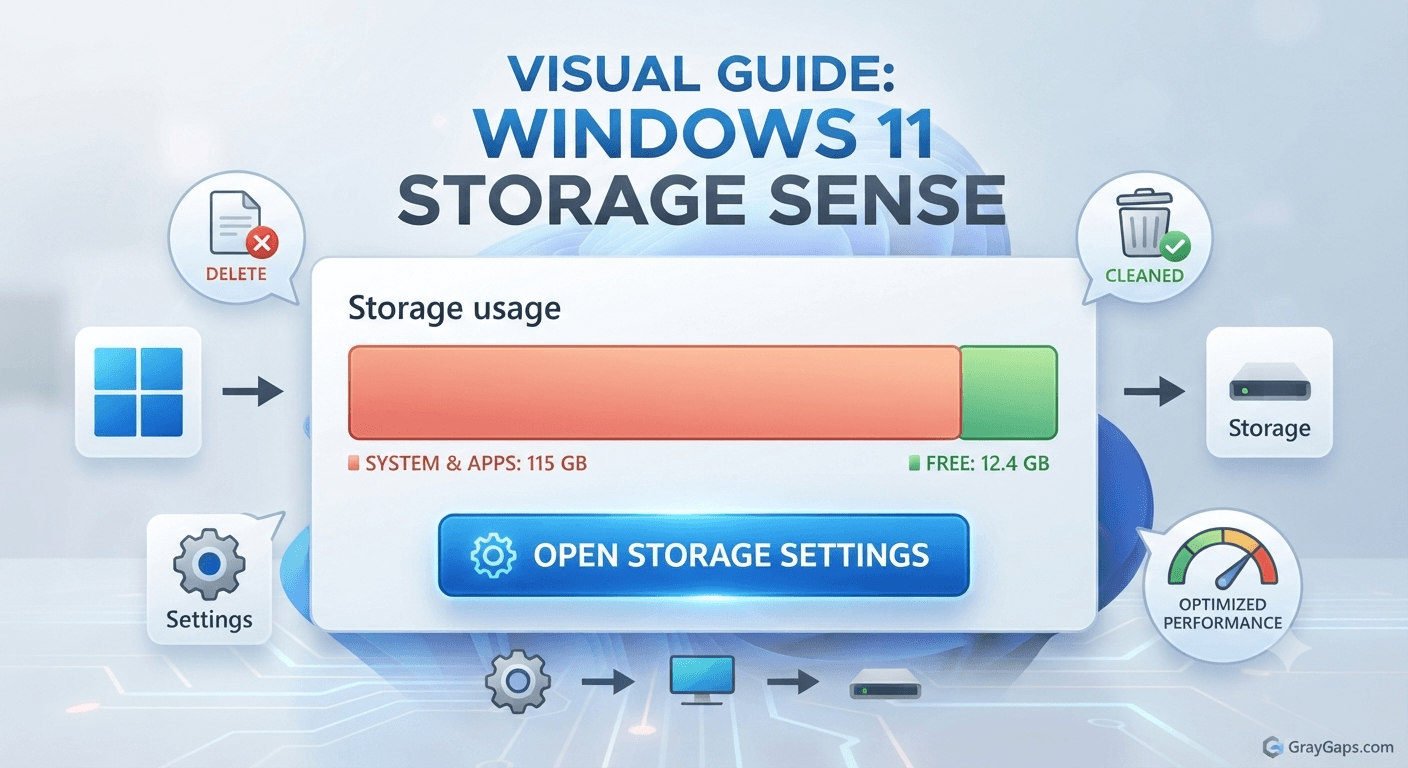
Is your computer slowing down and throwing low storage warnings? Running out of storage on your primary partition can severely impact your system’s performance. If you want to clear C drive space in Windows 11 quickly and safely without losing important files, this complete guide will walk you through the most effective methods.
⚡ Quick Answer: How to Clear C Drive Space in Windows 11
To quickly clear C drive space in Windows 11, open Windows Settings > System > Storage > Temporary files, select the files you want to remove (such as previous Windows installations and temporary update files), and click Remove files. You can also run Windows Disk Cleanup for immediate results.
1. Use Windows 11 Storage Sense to Delete Temporary Files
Storage Sense is a built-in automated tool designed by Microsoft to help you manage disk space and free up gigabytes of storage effortlessly.
- Open Windows 11 Settings by pressing
Windows + I. - Go to System and click on Storage.
- Click on Temporary files (wait a few seconds for Windows to scan your drive).
- Check the boxes next to files like Windows update cleanup, Delivery Optimization Files, and Previous Windows installations.
- Click the Remove files button at the top or bottom.
2. Run Disk Cleanup for Deep System Junk Removal
The classic Disk Cleanup tool remains one of the most reliable utilities to clear unwanted system files and cache data from your machine.
- Type Disk Cleanup in the Windows taskbar search box and open the app.
- Select your C: drive and click OK.
- Click on the Clean up system files button to scan deeper system folders.
- Check all the large file categories and click OK to permanently delete them.
3. Empty the Recycle Board and Clear Browser Caches
Often, we forget that deleted files sit in the Recycle Bin taking up valuable gigabytes. Right-click your desktop Recycle Bin icon and select **Empty Recycle Bin**. Additionally, clear heavy cache files from web browsers if you are looking for more optimization tips (similar to managing a streamlined student programming setup).
4. Disable Hibernation or Move Virtual Memory (Advanced)
If you need extra room, you can disable hibernation since the hibernation file (hiberfil.sys) takes up gigabytes equal to your RAM size. You can also check out advanced network troubleshooting tips if your PC performance lags alongside slow loading speeds.
Frequently Asked Questions (FAQ)
Q: Is it safe to delete temporary files to clear C drive space in Windows 11?
A: Yes, it is completely safe. Windows creates temporary files for routine tasks, but they become useless over time and clog up your storage.
Q: How much free space should I keep on my C drive?
A: It is strongly recommended to keep at least 15% to 20% of your total C drive capacity free to ensure smooth OS performance and regular updates.
Conclusion
Learning how to clear C drive space in Windows 11 is essential for keeping your computer fast, responsive, and error-free. By regularly using Storage Sense, clearing temporary caches, and managing your files properly, you can reclaim gigabytes of storage within minutes. Try these steps today and boost your PC performance!
Questions & Answers
Have a question about this article? Ask it below. Other GrayGaps readers can share their experience and help answer it.